FNA Process: Weighted Average FRI
Creating the weighted average fire return interval
You can use a pivot table to calculate a weighted average, but it requires an extra column in the source data. This may sound complicated, but you simply need to add the new column to the raw data tab, and then create a calculated field in the pivot table.
Step-by-step process
Screenshots of the process are included below the written instructions for those who find them useful.
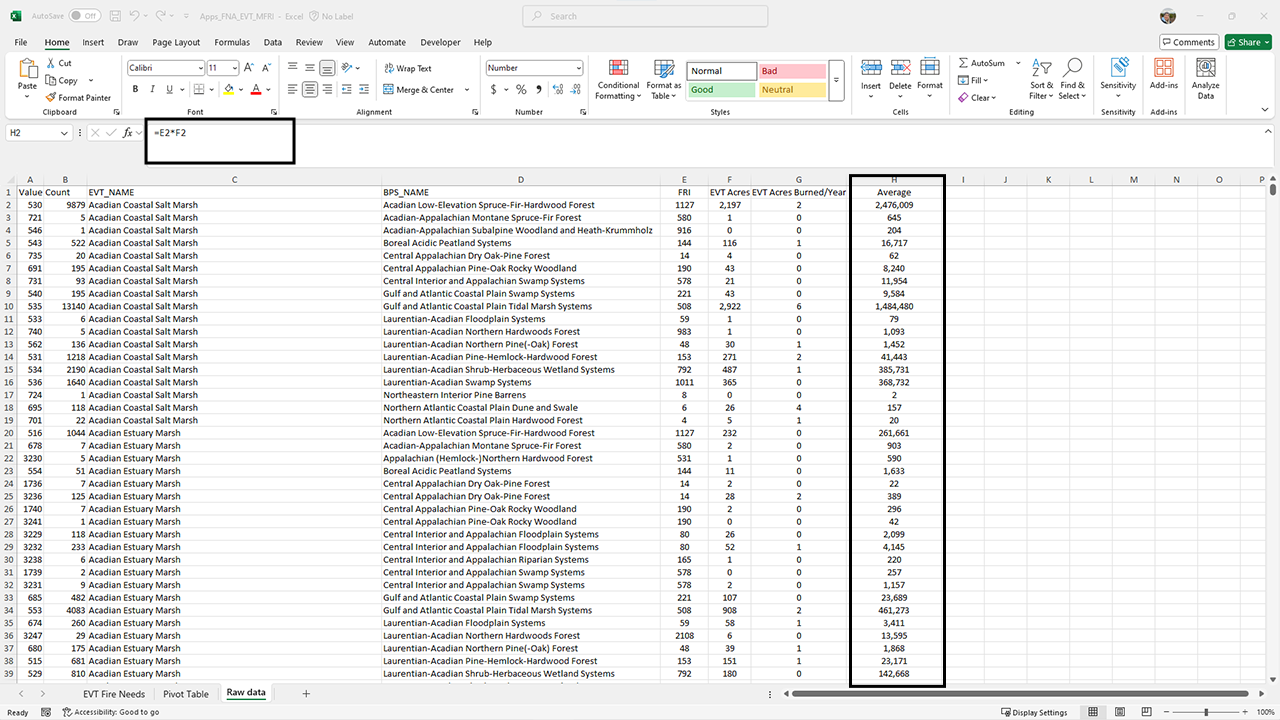
Create a weight column in the raw data tab
- Add a new column to the raw data tab - in the screenshots below it is named Average, but you should call it whatever makes the most sense to you.
Multiply “score” by “weight” for each row
- In the new column, create a formula that multiplies your “score” (in this case, FRI) by its “weight” (in this case the Acres column for each row).
- Thus, the calculation here is Average = FRI*Acres, or H2 = E2*F2 in the example screenshots below.
- In the new column, create a formula that multiplies your “score” (in this case, FRI) by its “weight” (in this case the Acres column for each row).
Copy the formula down the column
- Drag the fill handle (a small square at the bottom-right corner of the cell) down the column to apply the formula to all rows.
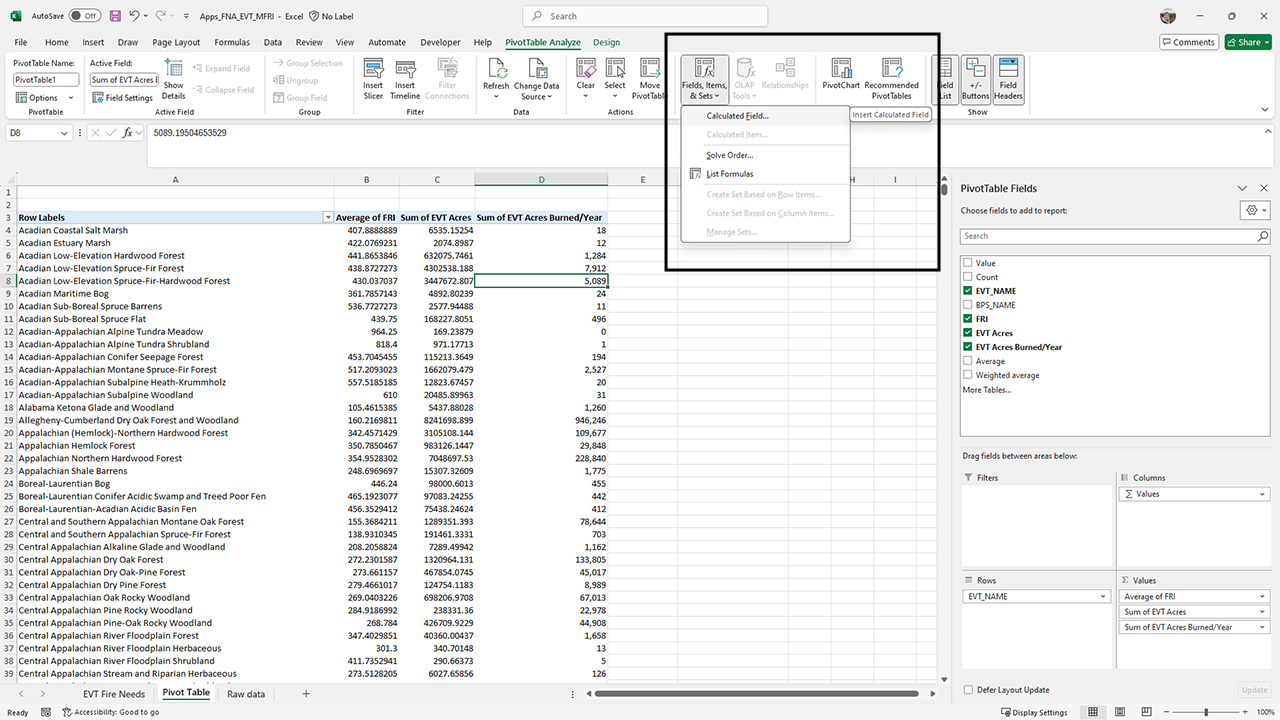
Add a calculated field to the pivot table
With your pivot table selected, go to the PivotTable Analyze tab on the ribbon bar.
In the Calculations group, click Fields, Items, & Sets, and then select Calculated Field.
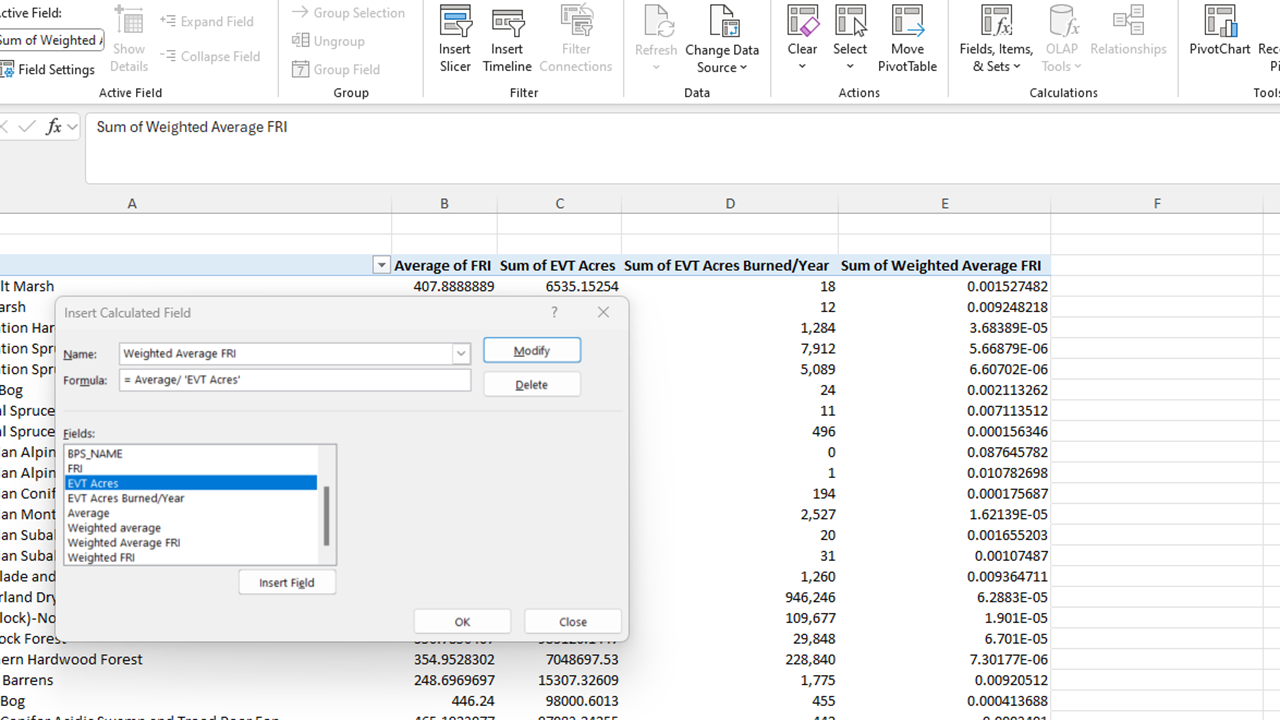
In the dialog box that appears, enter a name for your field. In the screenshots below, it is called Average FRI, but you should name it something that makes sense to you.
In the formula box, enter the following formula using your new fields:
- Formula: = Average * EVT_Acres
Click Add, then click OK.
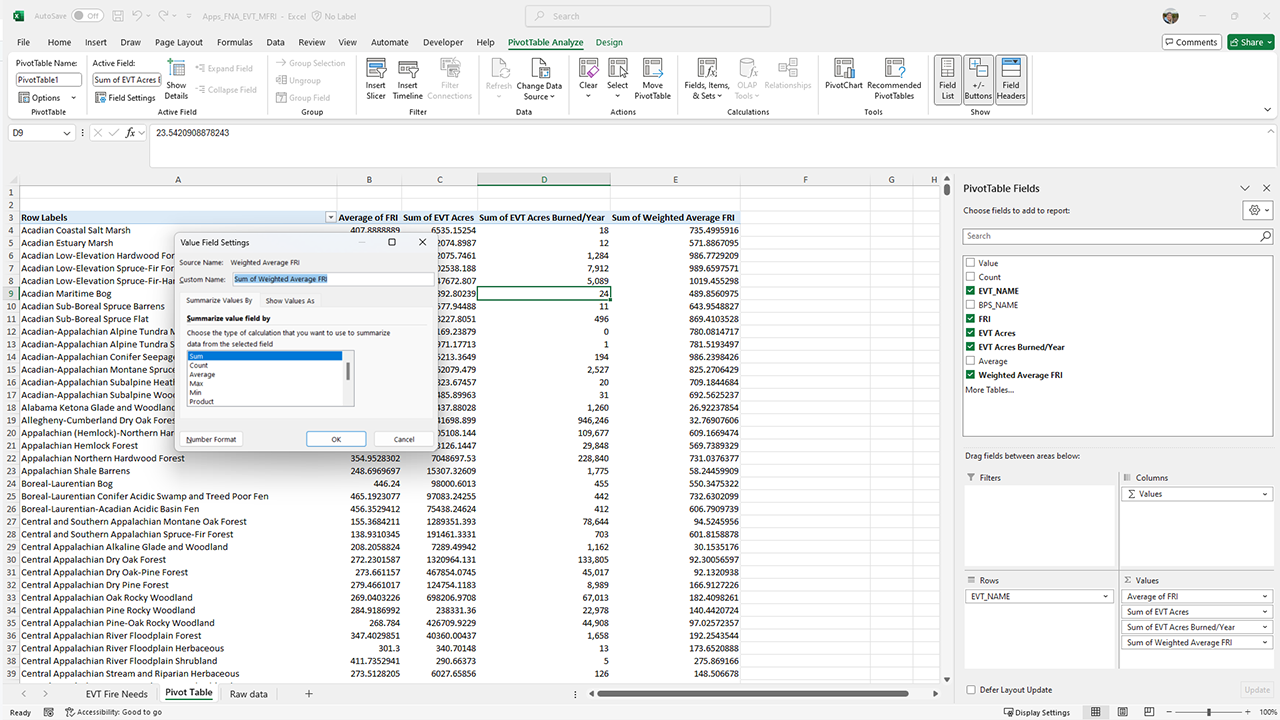
Drag the new Weighted Average field into the Values area of the PivotTable Fields dialog
Ensure the new field is set to Sum in the value field settings
Screenshots for using the pivot table to calculate the weighted average
Still have questions? LANDFIRE is here to help.
Ask the LANDFIRE Helpdesk (email link).
Search and subscribe to the LANDFIRE YouTube Channel (see tutorials, Office Hours, quick demonstrations).
Join an Office Hour (monthly meeting with open format Q & A with LANDFIRE experts).
Schedule a meeting (email link) with TNC’s LANDFIRE Team.